From the github repo, the site is a wrapper around exactly two shell commands. Instead of uploading your data to an untrusted site, you can run from the comfort and safety of your local computer:
In summary you could say yes but I wanted to simplify the process for the not-so-techy person. I will work on a Standalone app that simplifies the command and shows a nice GUI for more private documents
I hope you don’t take the comment you’re responding to as anything negative. I’m a software engineer and I would use this myself rather than try and remember some arcane command line utility.
Not at all, I'm actually quite happy with all the comments, ideas and feedback I've received on this, really encourages me to keep improving the project
Consider using `-depth 1`, `-depth 3` as a final parameter to map colors to only 2¹=2 or 2³=8 instead of 2²=4 gray levels. Using a small number of gray levels SIGNIFICANTLY reduces file size and also gives your pseudo-scanned document a more pixelated, it-just-came-out-of-my-old-printer look.
Also consider using `-density 100` or even `-density 75` for long text documents. Using a density of 75 dpi produces documents that are 4x smaller than 150 dpi (75²=150²/4) and doesn't affect the readability of normal-sized (10-12pt) text that much. Finally, sometimes it works best not to add Gaussian noise.
Rather than making a COMPACT version, your command created a file over twice the size of one created using the aforementioned
convert letter.pdf -colorspace gray \( +clone -blur 0x1 \) +swap -compose divide -composite -linear-stretch 5%x0% -rotate 1.5 as-scanned.pdf However, that may be a useful feature, since many users end up inadvertently creating very large PDFs when scanning.
If you lower the resolution those auto-scanning services that does OCR on the documents will get problems converting the tex back to normal text. Which might or might not be the point of doing this in the first place... :-)
The output file size relative to other approaches will depend on the contents of the input file (e.g., does it embed any bitmaps, or is it only text in non-rasterized fonts?), the density you use (e.g., 150 dpi is 4x greater than 75 dpi), the bit depth you use (3 bits is 4x greater than 1 bit), and whether you add noise or not. Also, the one-line command above your comment is short/easy to remember and reasonably fast -- which is useful if you're impatient like me.
All that said, note that you can always add a `-compress ` to the convert command, although this could make it noticeably slower, say, for a directory full of long documents. There's even a Fax TIFF compression method that makes the document look like it came out of one of those fax machines you see in movies from the 1980's. To get a list of supported compression methods, type `convert -list compress` at the command line.
For other noobish windows users like myself, you can simply dump the following into a bat file. When run, it'll look for a file called "scanThis.pdf" and apply the conversion with ImageMagick.
IF EXIST scanThis.pdf (magick convert -density 100 scanThis.pdf -colorspace gray +noise Gaussian -rotate 0.5 -depth 2 SCANNED.pdf) ELSE (ECHO File scanThis.pdf not found & PAUSE)
Nope that's it. The bat file here is just a clickable shortcut so you don't have to remember the whole command. The interesting stuff is happening in ImageMagick, which has to be installed already.
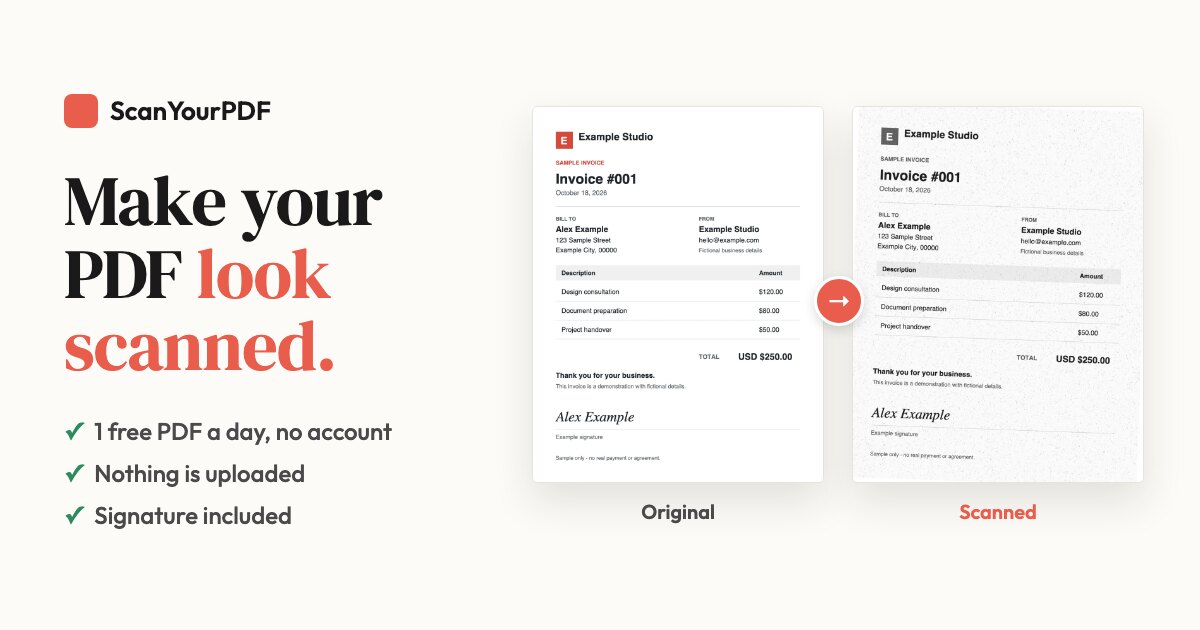
I recently came across a couple of institutions which required me to print, sign and send back a couple of documents. COVID and all of that means I don't have a printer at home. I made this website by inspiration from other posts here and now it's free to use! Code is open source so feel free to comment any new ideas or things you would like includede!
I usually sign documents on my iPad but in this case they told me the signature had to be from a pen. COVID and everything means I don't have a printer nor a scanner at home so I developed this to "scan my iPad signed documents" worked like a charm!
It's interesting that the problem they had was with the signature. You can very easily make a handwritten signature on an iPad. I don't see how there's any practical way to tell the difference between a high-quality, handwritten signature done on an iPad with either a finger or an Apple Pencil and a scanned signature done with a pen. Are you sure that's not just some excuse they gave you?
Banks that need monthly financials to assure regulators that they are servicing their loans are also required to justify the documents to the regulator. If you just autogenerated it perhaps they’re wrong or falsified. While if you have to take out a pen and sign them that won’t happen.
That's beyond absurd. The content of the document is what determines whether it's falsified or not, and you can inspect the content for inconsistencies on a generated PDF far more easily than a scanned one.
But scanning these documents defeats the point. The law isn't saying "it must be signed with wet ink, but after that a scanned copy is sufficient", it says you need the actual paper with the wet ink signature.
> If you’re a solicitor responsible for registration, you need the other parties' solicitors, on closing, to send you the wet-ink signed parts of the documents. You’ll only proceed when you have the wet-ink signed documents, not when you have seen electronic images of them.
it occurs to me that you could do this with a lower tech method, just sign your name on a piece of scotch tape and align the tape on the monitor over the document, take a photo with your phone and then use that as the 'scanned image' in the pdf file.
Original: Please don't upload any private or confidential pdfs right now. I emailed OP two security concerns that trivially allow anybody to see any of the converted pdfs.
Comments (168) 45 threads
convert letter.pdf -colorspace gray \( +clone -blur 0x1 \) +swap -compose divide -composite -linear-stretch 5%x0% -rotate 1.5 as-scanned.pdf
[0] https://news.ycombinator.com/item?id=23157979
[1] https://tex.stackexchange.com/questions/94523/simulate-a-sca...
[2] https://tex.stackexchange.com/a/94541/185219
Continue this thread — 4 replies
Continue this thread — 1 reply
Also consider using `-density 100` or even `-density 75` for long text documents. Using a density of 75 dpi produces documents that are 4x smaller than 150 dpi (75²=150²/4) and doesn't affect the readability of normal-sized (10-12pt) text that much.
Finally, sometimes it works best not to add Gaussian noise.
convert letter.pdf -colorspace gray \( +clone -blur 0x1 \) +swap -compose divide -composite -linear-stretch 5%x0% -rotate 1.5 as-scanned.pdf
However, that may be a useful feature, since many users end up inadvertently creating very large PDFs when scanning.
Continue this thread — 1 reply
All that said, note that you can always add a `-compress ` to the convert command, although this could make it noticeably slower, say, for a directory full of long documents. There's even a Fax TIFF compression method that makes the document look like it came out of one of those fax machines you see in movies from the 1980's. To get a list of supported compression methods, type `convert -list compress` at the command line.
Continue this thread — 1 reply
To be honest, I'm waiting for a boom of such services, that can be run in a separate tab without any network jumps.
One suggestion: add thumbnail/preview of how docs will look like after "scanned". Or maybe even a "Before and After" teaser! :)
It's interesting that the problem they had was with the signature. You can very easily make a handwritten signature on an iPad. I don't see how there's any practical way to tell the difference between a high-quality, handwritten signature done on an iPad with either a finger or an Apple Pencil and a scanned signature done with a pen.
Are you sure that's not just some excuse they gave you?
Continue this thread — 2 replies
Continue this thread — 1 reply
Yes, absurd.
Continue this thread — 5 replies
Continue this thread — 1 reply
> If you’re a solicitor responsible for registration, you need the other parties' solicitors, on closing, to send you the wet-ink signed parts of the documents. You’ll only proceed when you have the wet-ink signed documents, not when you have seen electronic images of them.
As others noted a before and after pic would be great.
Just tried this. Orienting your phone at 45 degrees to the monitor can mostly reduce them, but that's not really that useful.
[1]https://en.wikipedia.org/wiki/Moir%C3%A9_pattern
Continue this thread — 4 more replies
Original: Please don't upload any private or confidential pdfs right now. I emailed OP two security concerns that trivially allow anybody to see any of the converted pdfs.
Continue this thread — 22 replies
All comments shown.
Couldn't load more comments. Check your connection and try again.